

MCP
Pegasus Nexus MCP — Connect Your Fleet to Your AI Assistant
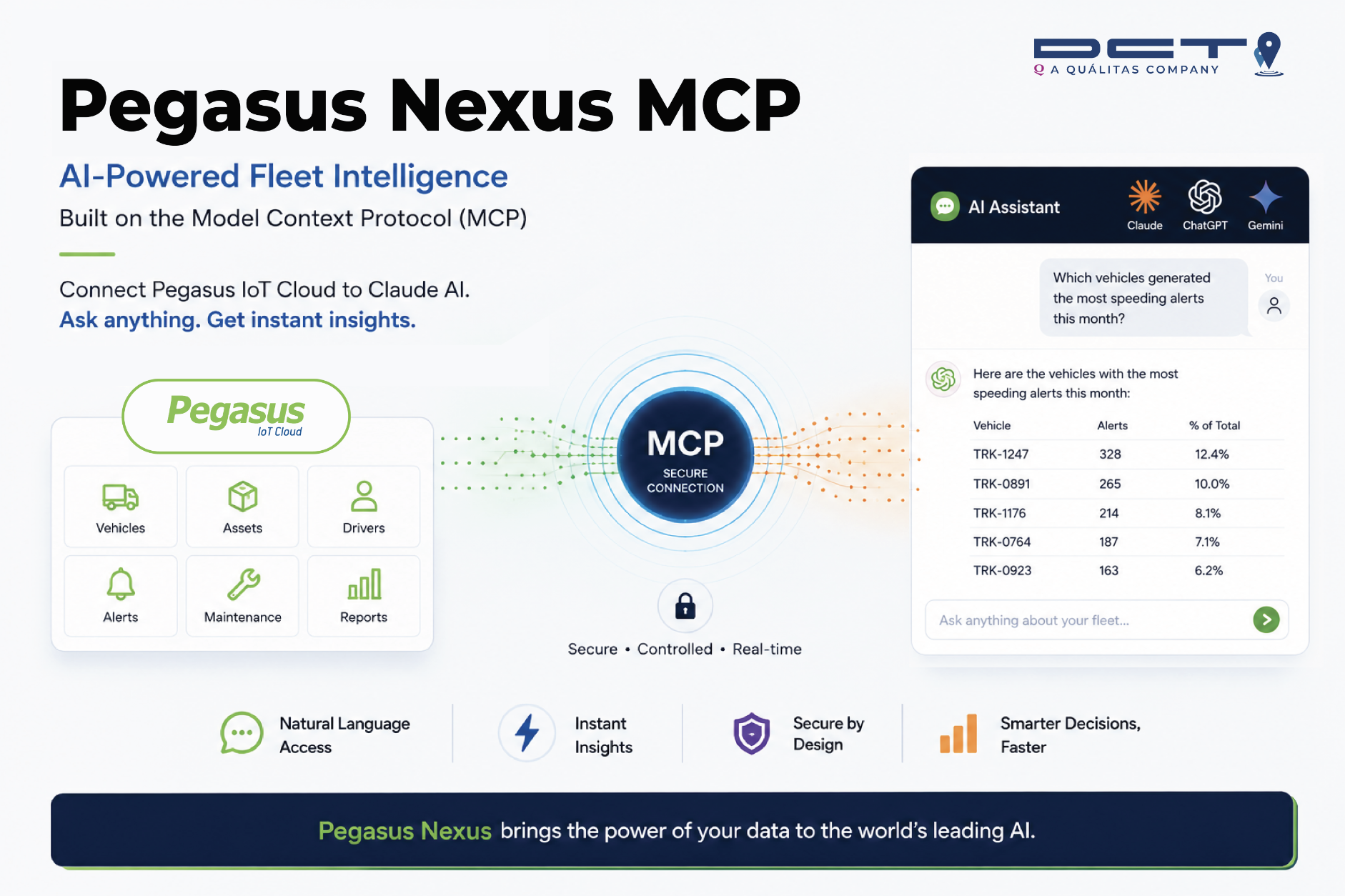
Pegasus Assistant lets you ask questions about your Pegasus fleet in plain language, from the AI assistant you already use: Claude, ChatGPT, or any other assistant that supports the Model Context Protocol (MCP).
Instead of building reports or exporting data, you can just ask:
"Which vehicles were used less than 2 days last week?"
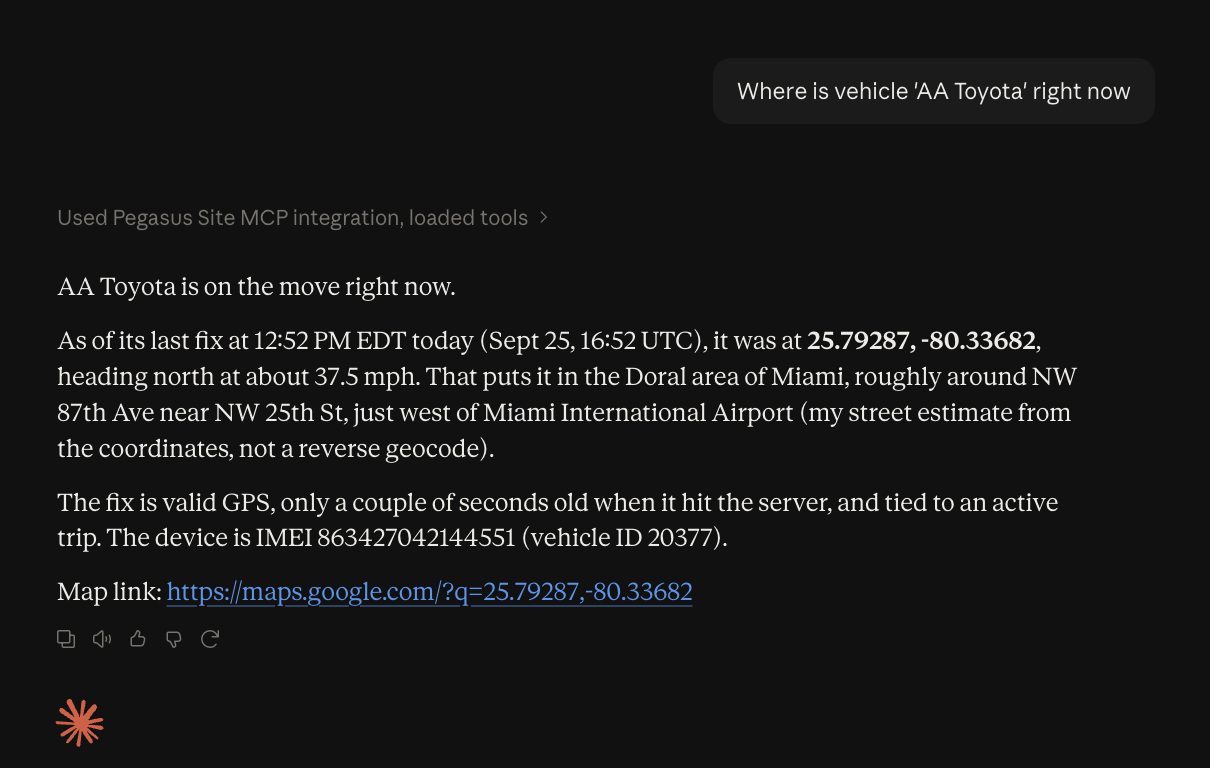
"Where is vehicle 'TDX922' right now?"
"How many vehicles in the North Yard group are online?"
The assistant looks up the answer in your Pegasus account and replies in the conversation. You can then keep going with follow-up questions, summaries, tables, or drafts.
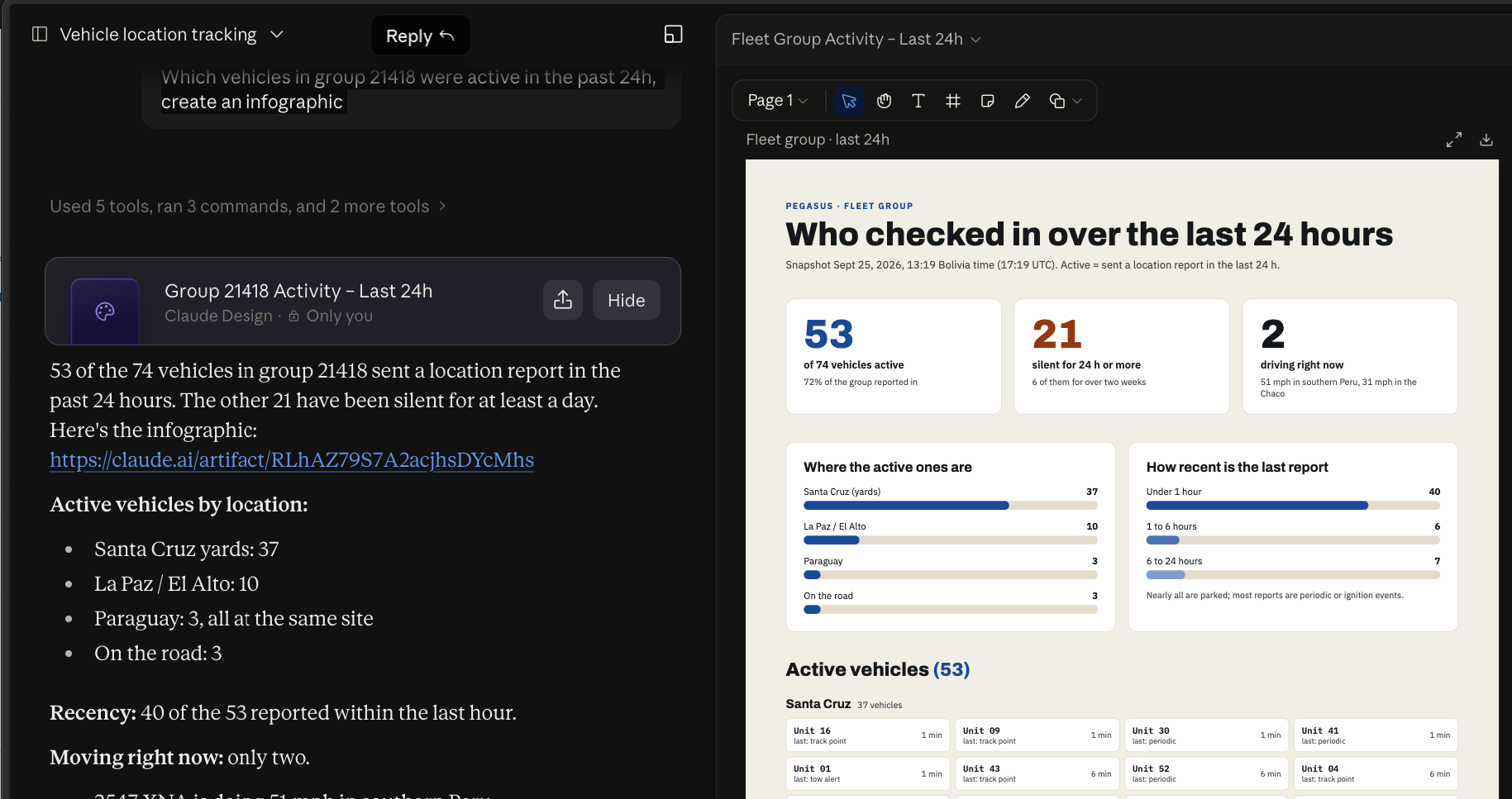
Which vehicles in group 21418 were active in the past 24h, create an infographic
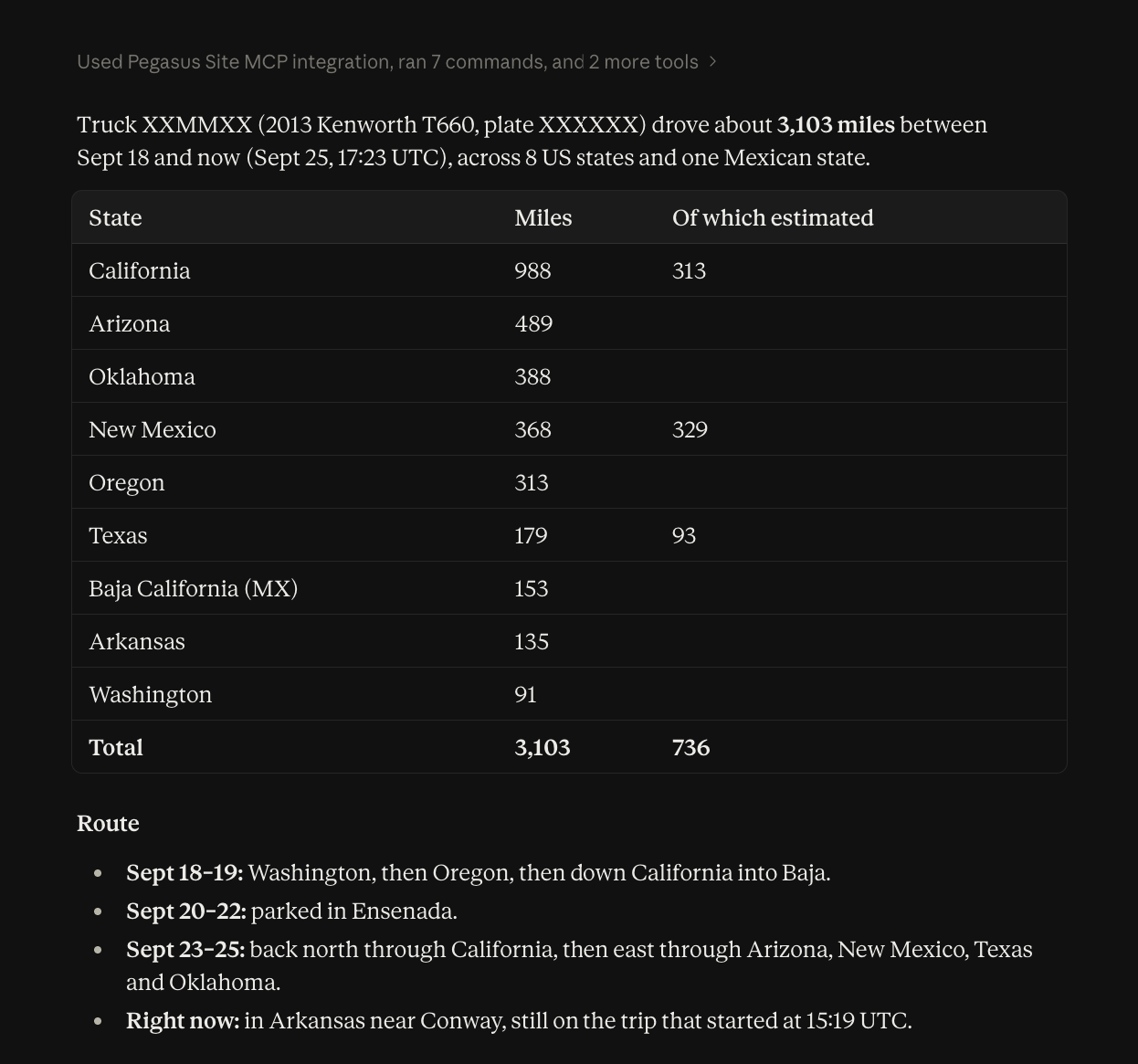
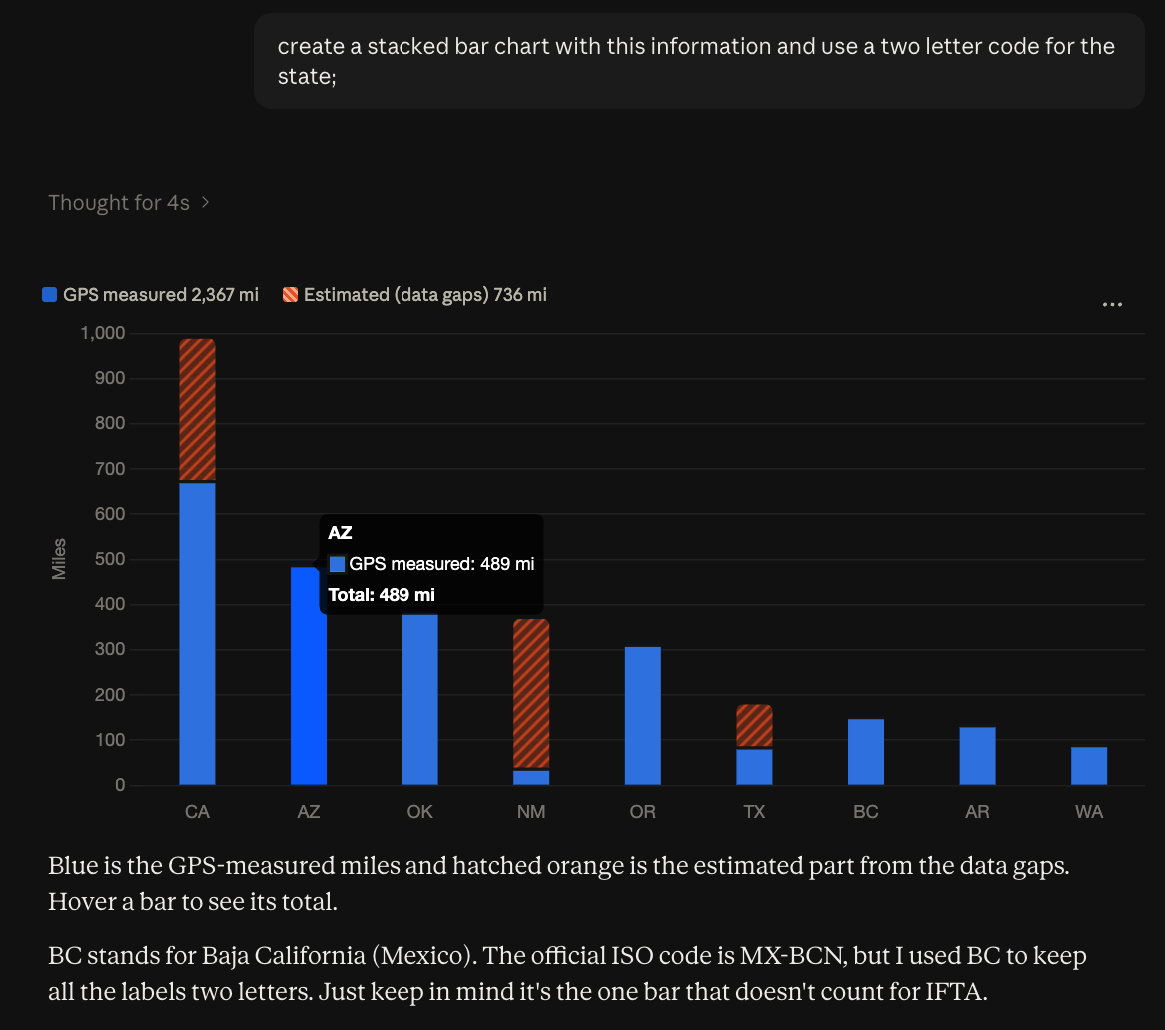
Create a report of the mileage driven by state for vehicle "XXMMXX" over the past week
Contents
- How it works
- What you can ask
- Before you start
- Getting started
- Tips for better answers
- Security and privacy
- Current limitations
- Troubleshooting
- FAQ
- Getting help
How it works
Pegasus Assistant is a hosted MCP server: a secure connector that gives an AI assistant a set of read-only tools for your Pegasus data. Nothing needs to be installed on your machine.
 ┌──────────────────┐        ┌──────────────────────┐        ┌──────────────┐
 │  Your AI client  │  MCP   │  Pegasus Assistant   │  API   │   Pegasus    │
 │ (Claude, ChatGPT │ ─────▶ │     (MCP server)     │ ─────▶ │ (your site)  │
 │   and others)    │ ◀───── │   read-only tools    │ ◀───── │              │
└──────────────────┘ └──────────────────────┘ └──────────────┘- You add the Pegasus Assistant URL to your AI client as a connector.
- The first time you use it, you sign in with your normal Pegasus username and password on the Pegasus OAuth page.
- When you ask a fleet question, the assistant picks the right tool (for example "list vehicle locations"), and Pegasus Assistant fetches the data as you, with your own Pegasus permissions.
- The assistant uses the result to answer you.
Things to keep in mind:
- Read-only. Pegasus Assistant can never create, edit, or delete anything in Pegasus, and it can't send commands to vehicles or devices.
- Your permissions apply. You only see what your Pegasus user can already see. Two people in the same company can get different answers if they have access to different groups.
- You pick the AI. Pegasus doesn't provide the language model. Your AI client and its provider handle the conversation.
What you can ask
These are the kinds of questions Pegasus Assistant can answer today.
Where is my fleet? What is it doing right now?
- "Where's my fleet right now?"
- "Where is vehicle 'TDX922'?"
- "Which vehicles are moving and which are parked?"
- "Are there any vehicles near 1234 Address St?"
- "Is vehicle 4412 online right now?"
- "How many vehicles in the North Yard group are online?"
- "Which devices have stopped reporting?"
What happened over a period of time?
- "Which vehicles were used less than 2 days last week?"
- "Which vehicles weren't used at all this month?"
- "Which vehicles in the North Yard group were used the least in the last 30 days?"
- "What did vehicle X do last week? How far did it drive?"
- "Where was vehicle X parked yesterday, and for how long?"
- "Show me vehicle X's exact trail between 2 and 3 pm today."
- "When exactly did vehicle X's ignition turn on this morning?"
What does my account contain?
- "How many vehicles and assets do we have?"
- "How are our vehicles grouped? Which vehicles are in the South Branch group?"
- "What geofences are set up?"
- "Which vehicles are red?" / "Which vehicles are Nissans?"
- "Which vehicles have a device installed, and which don't?"
- "How many automation rules (triggers) do we have? Is there one called 'After-hours movement'?"
- "Which automations have a Telegram message and for which groups"
Tools available to the assistant
You don't have to call these yourself, because the assistant picks them
automatically. The list can still help you understand what's possible.
| Area | Tool | What it does |
|---|---|---|
| Utilization | query_fleet_metrics | Days each vehicle was used over a period (last week, this month, last 30 days, or specific dates), with optional filters such as "less than 2 days" |
| Live status | list_vehicle_locations | Latest location of each vehicle, including whether it's moving |
list_vehicle_connections | Whether each vehicle's device is currently online | |
list_devices | Devices with their connection status, last report time, and latest telemetry | |
| History | list_trips | Trip-by-trip history (drives and stops) for up to 25 vehicles over a period |
list_raw_telemetry | Individual device events (exact GPS points, ignition changes) for up to 3 vehicles over up to 3 days | |
| Account data | list_vehicles, search_vehicles | Vehicle records, with search by exact field value (name, color, make, …) |
list_assets | Non-vehicle tracked items such as trailers and tags | |
list_groups, list_geofences | How your fleet is organized, and your defined zones | |
list_triggers | Your account's automation rules | |
count_vehicles, count_assets, count_devices, count_groups, count_geofences, count_triggers | Quick "how many" totals | |
| Feedback | submit_feedback | Sends feedback to the Pegasus team when an answer was wrong or unhelpful |
Before you start
You'll need:
- A Pegasus user account on your company's Pegasus site, the same username and password you use to sign in to Pegasus.
- Your Pegasus Assistant URL. Each Pegasus site has its own URL, ending in
/mcp. Ask your account
contact or support team for it. It looks like:https://pegasus-mcp-server.xxxxx.a.run.app/mcp - An AI client that supports remote MCP connectors, such as Claude (Desktop app or claude.ai) or ChatGPT. On some plans, custom connectors have to be enabled by a workspace admin first.
Getting started
Claude (Desktop or claude.ai)
- Customize → Connectors → Add
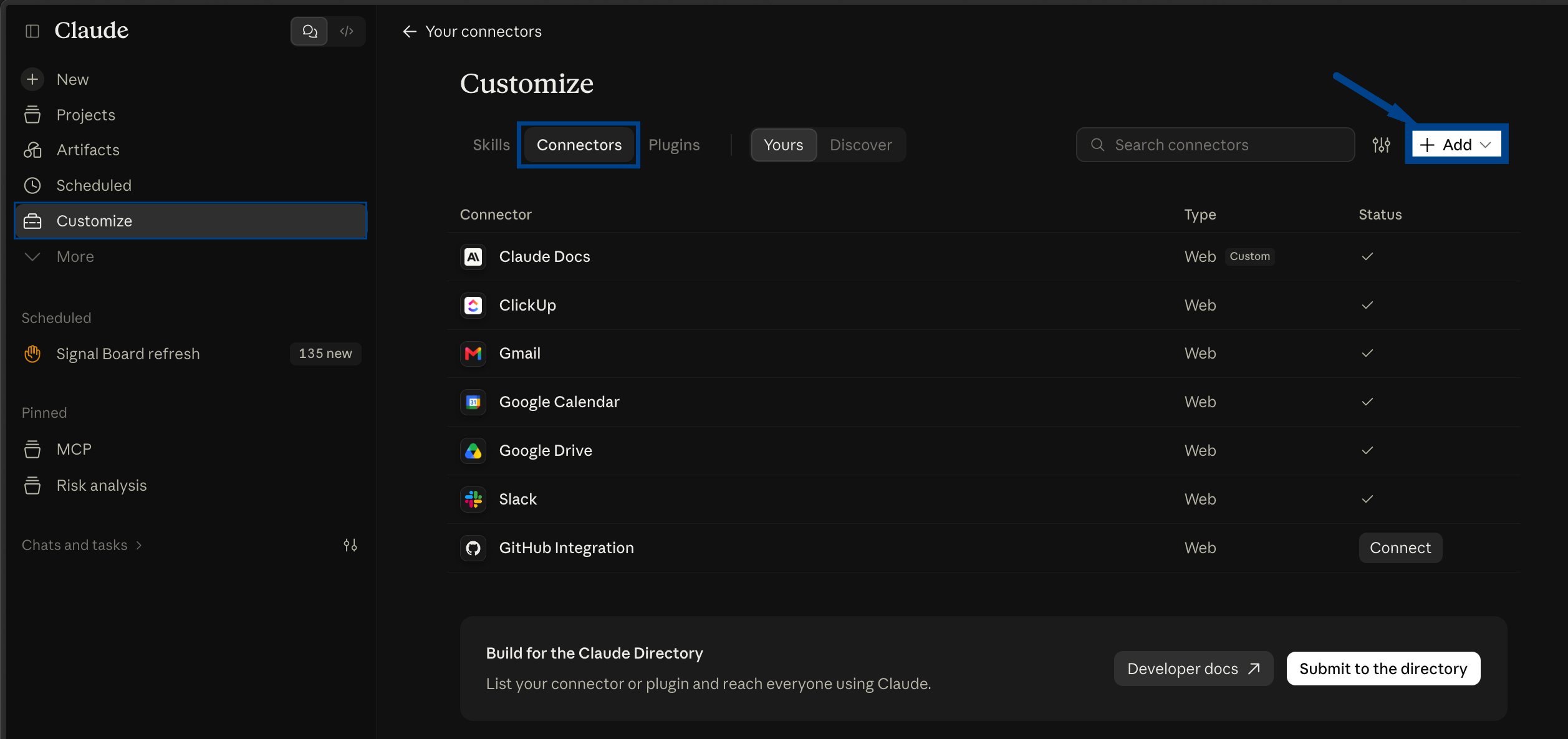
- Click Add custom connector.
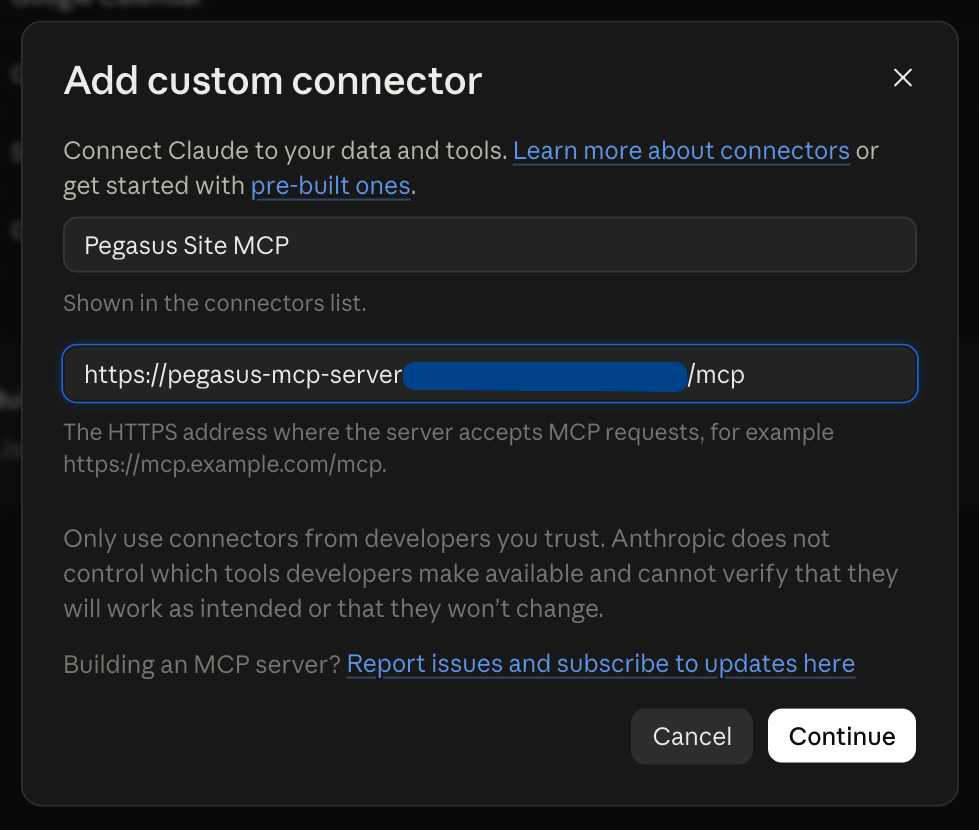
- Enter a name, for example
Pegasus Site MCP, and paste your site's Pegasus MCP URL.
-
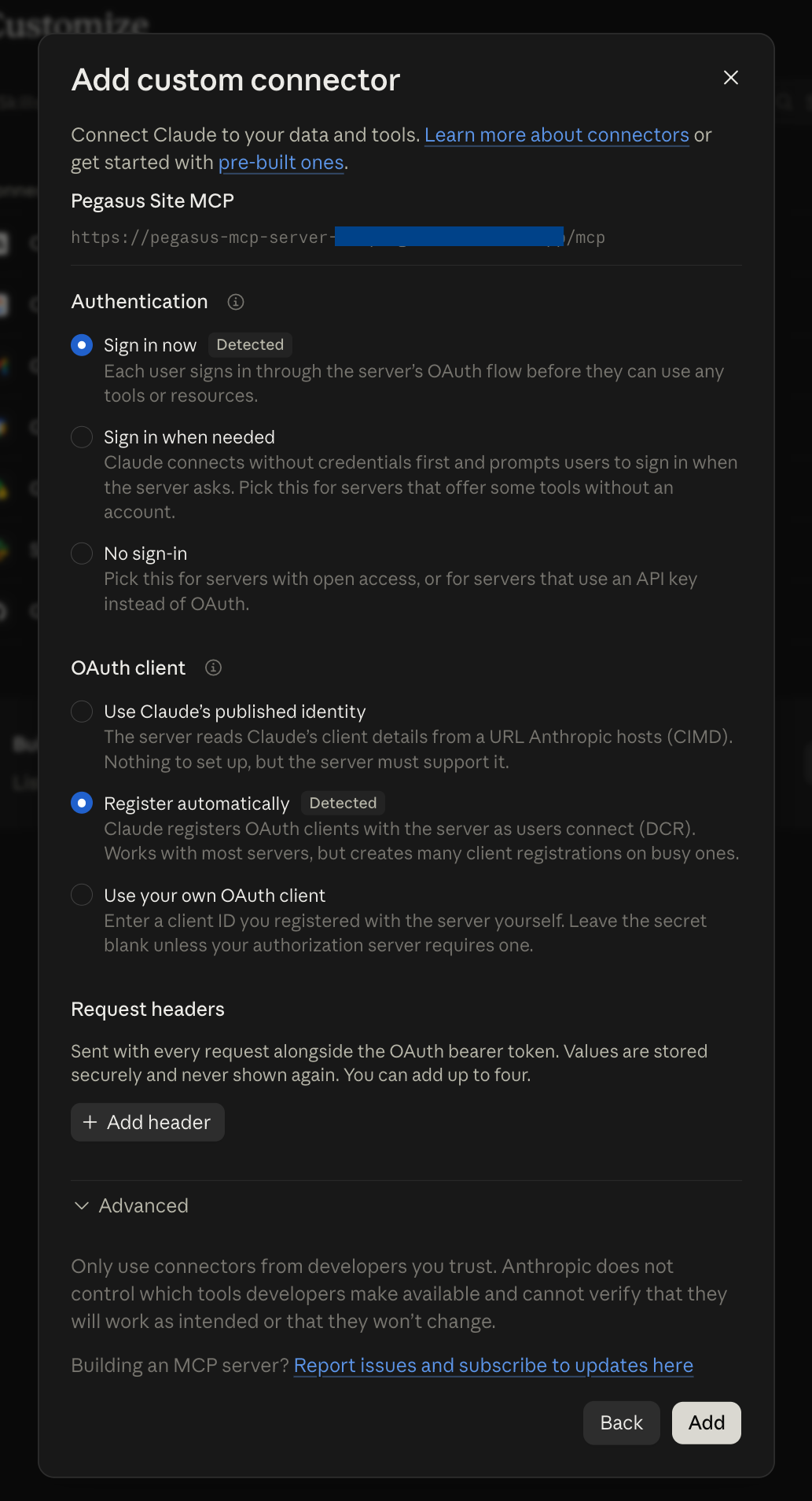
Use the defaults and click Continue
-
Click Connect
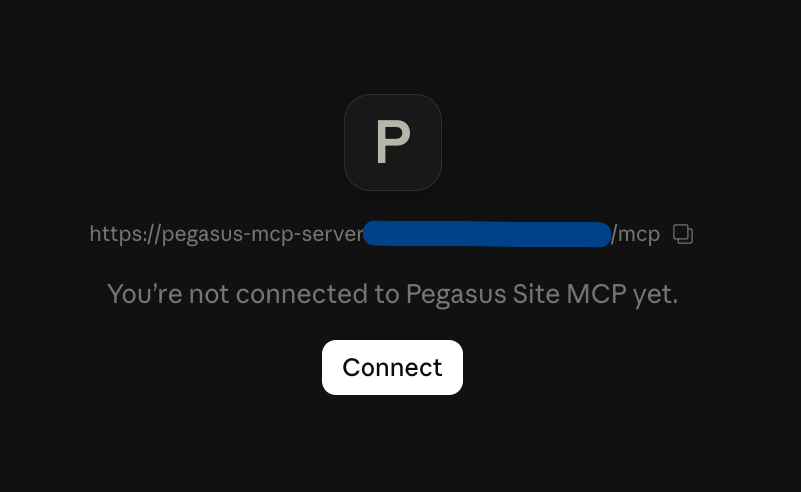
-
A browser window opens with the Pegasus login page. Sign in with your Pegasus username and password.
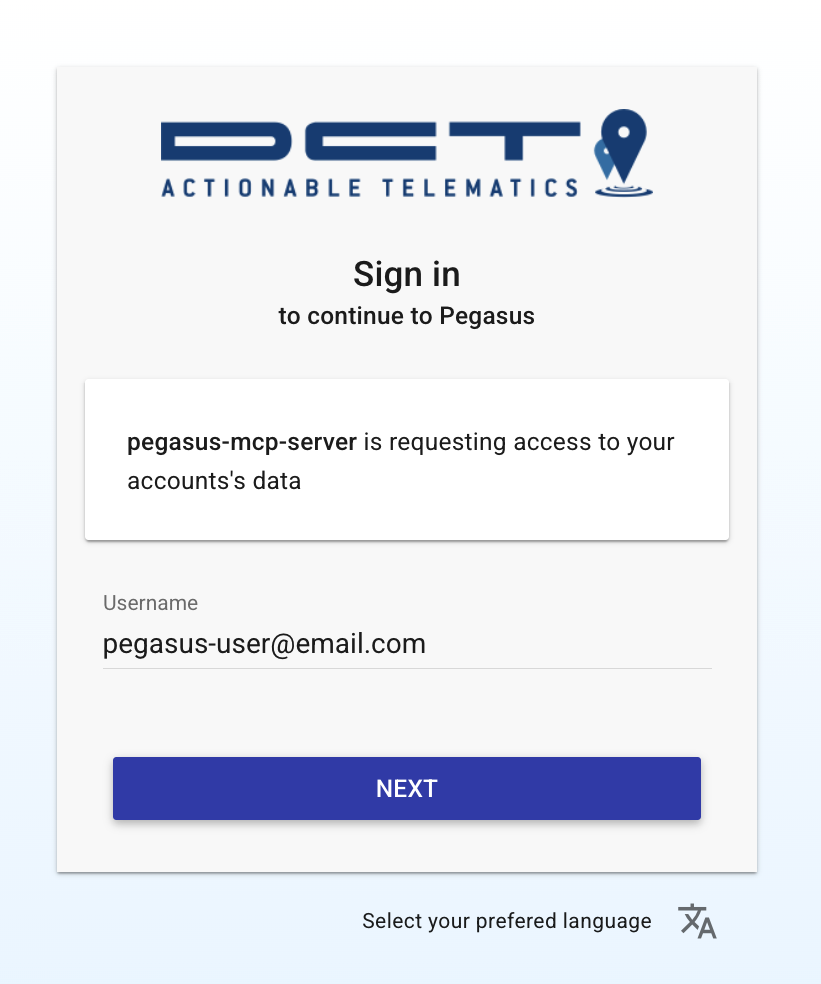
-
After you sign in, you're sent back to Claude and the connector shows as connected with the tools displayed
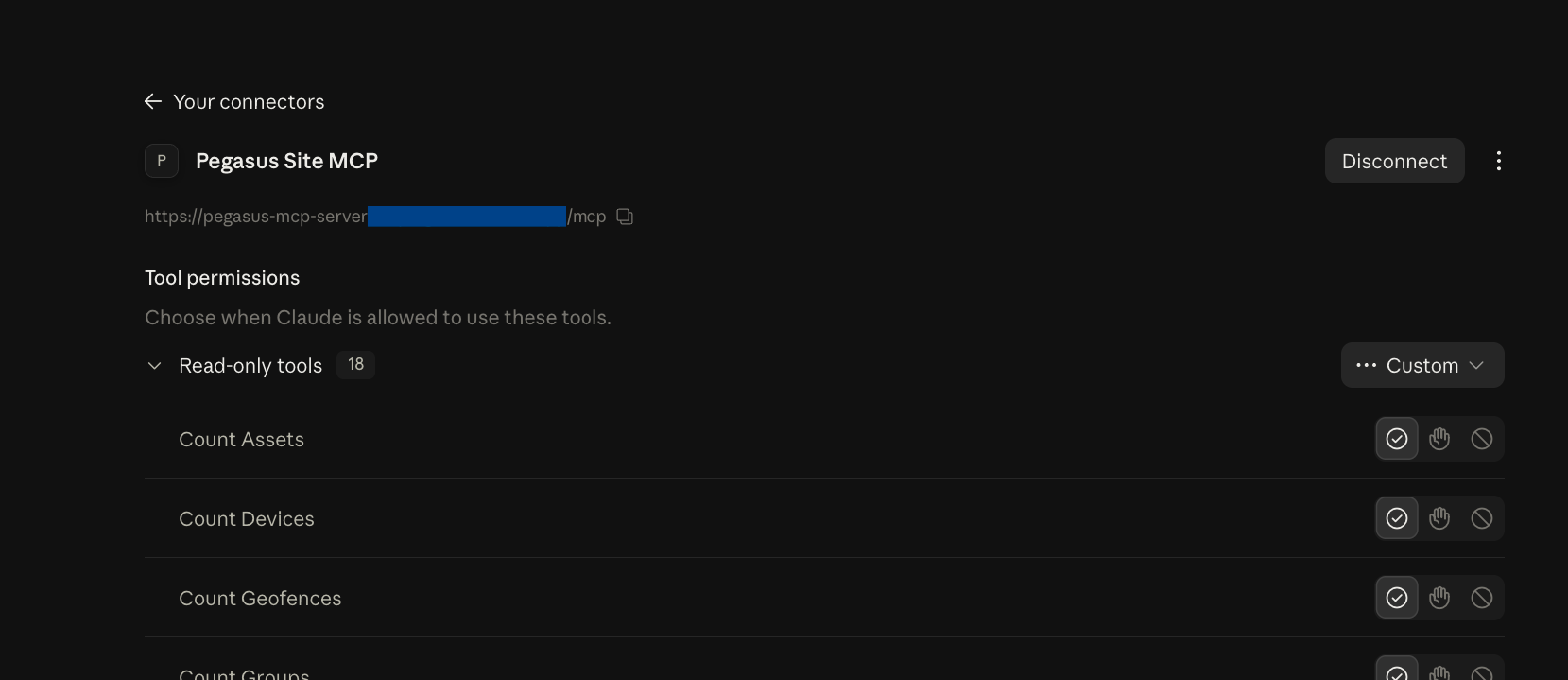
- Start a new chat and make sure the Pegasus connector is turned on in the chat's tools menu. Then ask something like "List my fleets" or "Where are the vehicles in the Transport ABC fleet today?"
The first time the assistant uses a Pegasus tool, Claude may ask you to allow it. You can allow it once or always.
ChatGPT
- Open Plugins, click Add on the top right Add custom MCP server
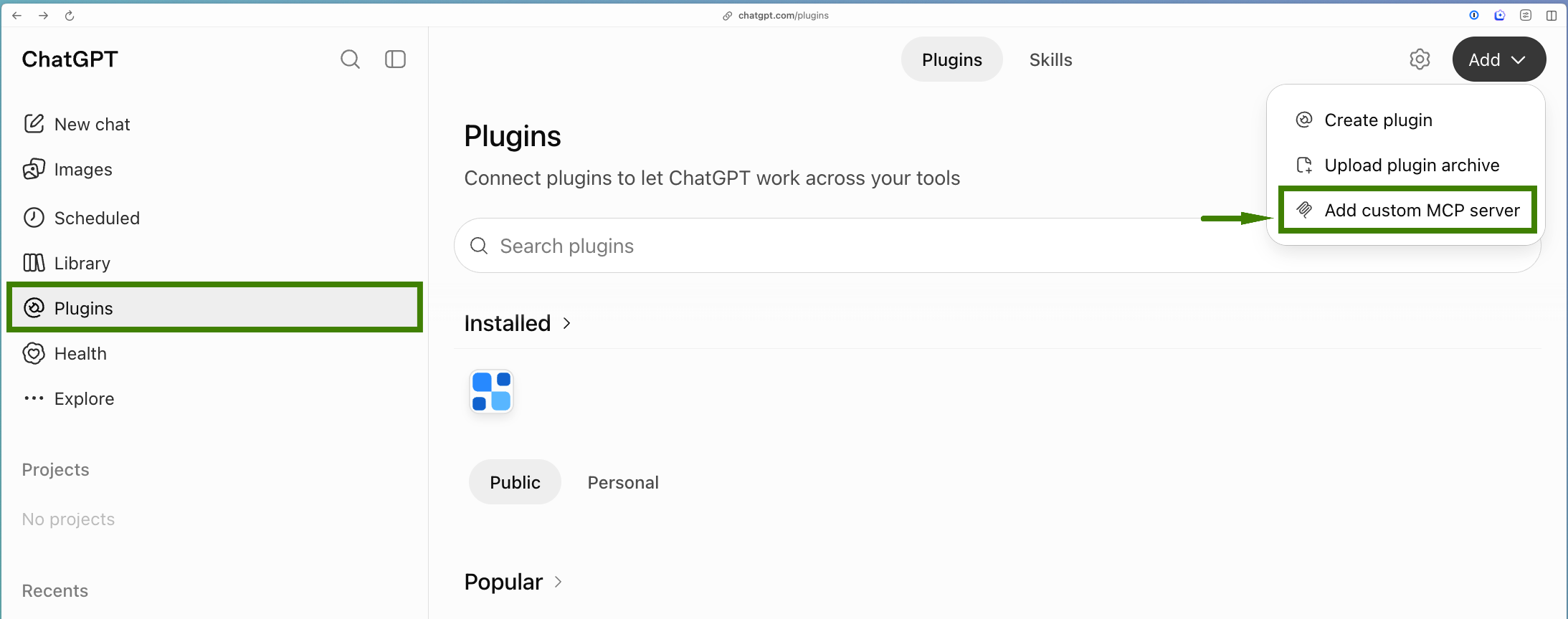
- Enter the details
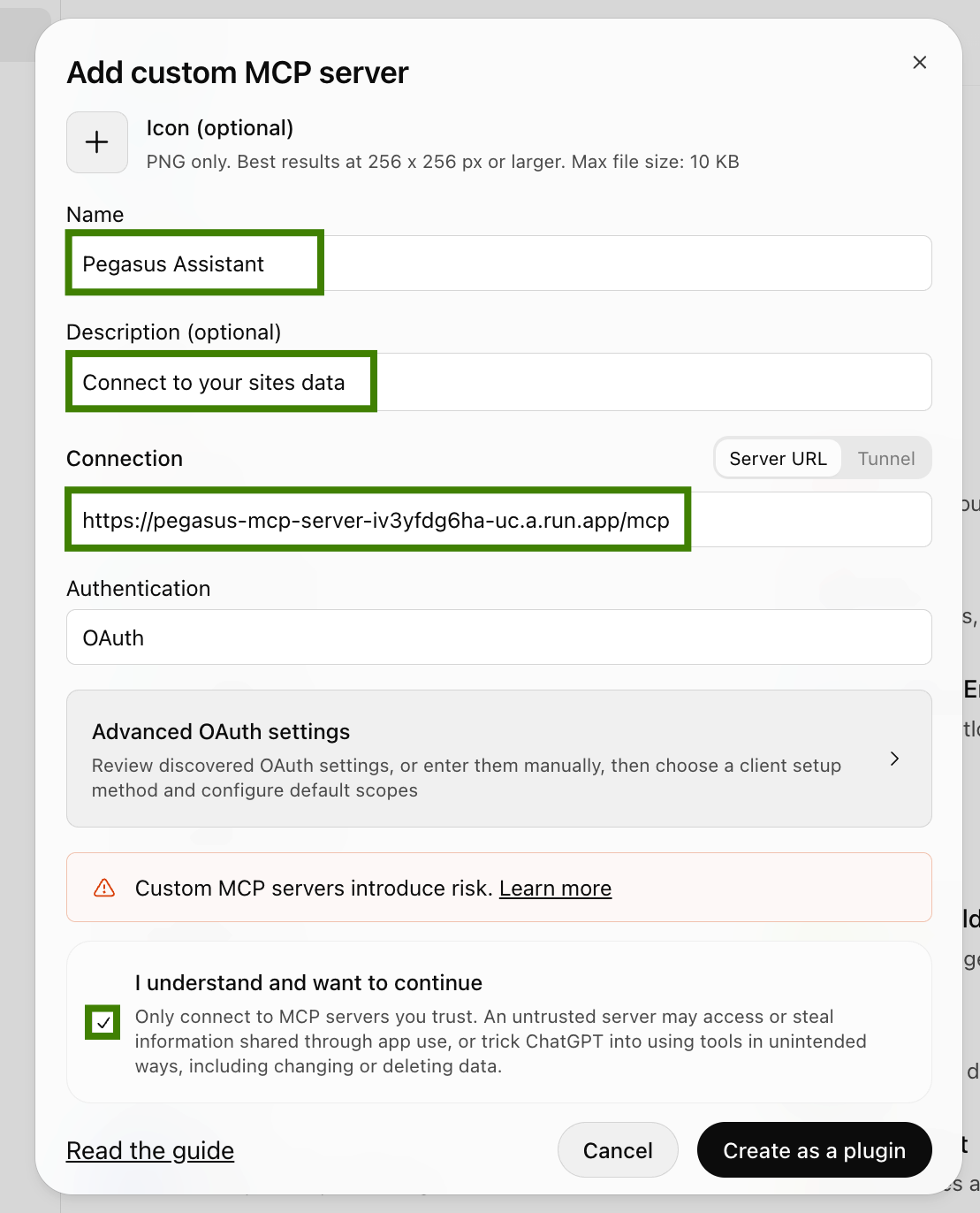
- Click Continue
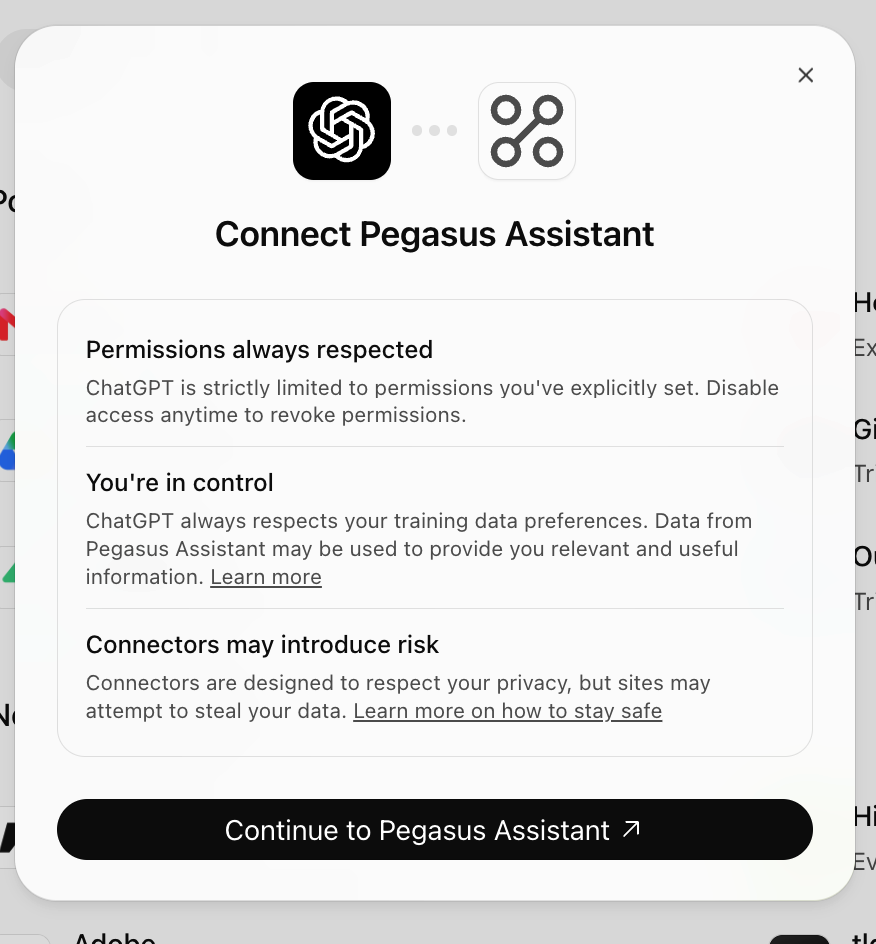
- Save, then sign in with your Pegasus username and password when the Pegasus login page opens.
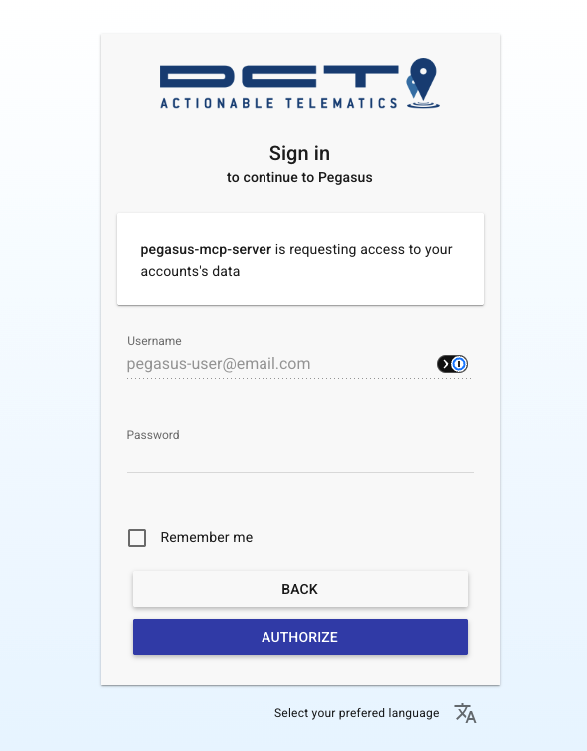
- If the MCP Connection fails with the plugins the first time you may have to go back to the Plugin and Connect again
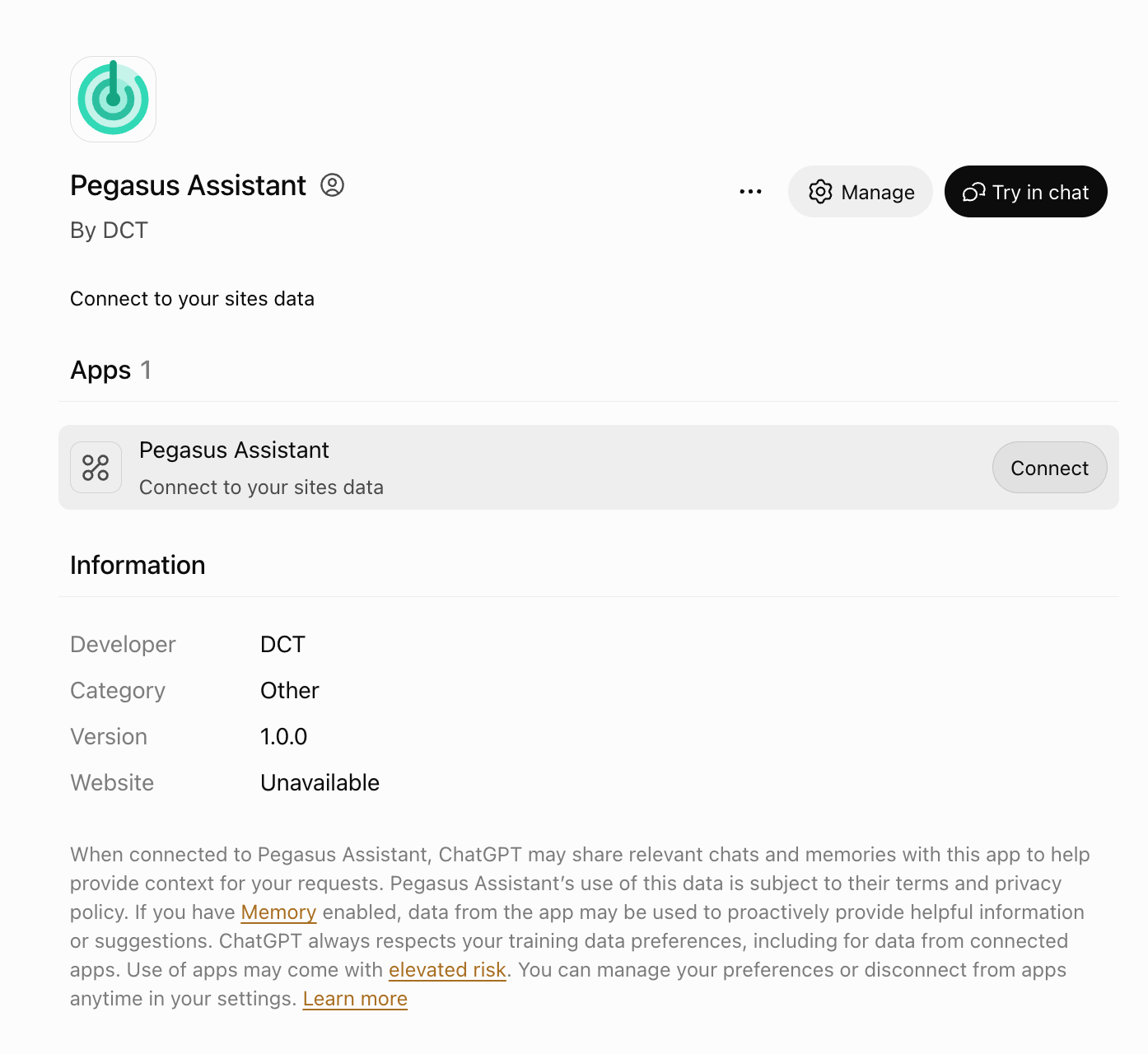
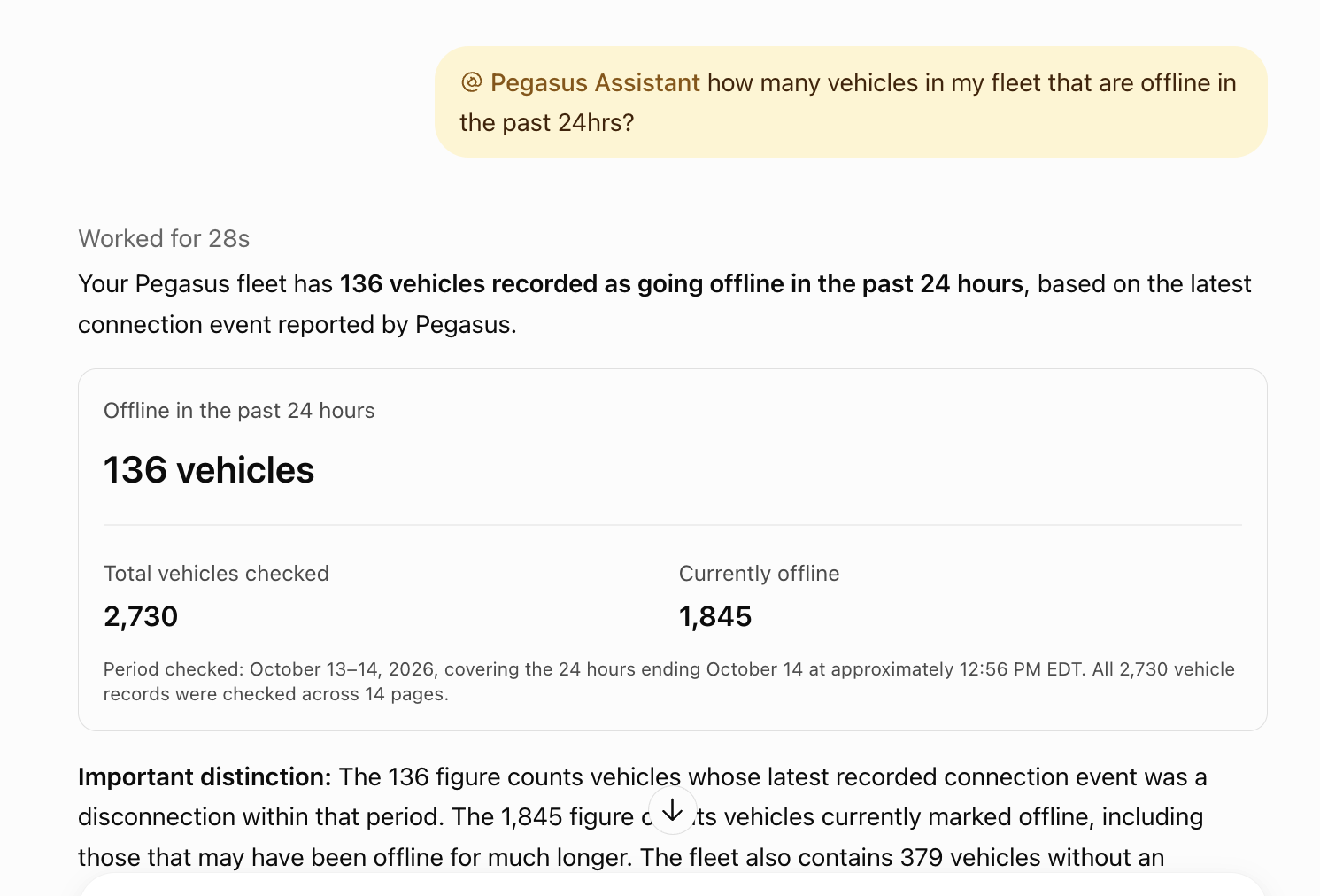
- Then just start a new chat and tag the @Plugin Name (@Pegasus Assistant in our example)
Other MCP clients
Pegasus Assistant works with any MCP client that supports:
- Remote servers over Streamable HTTP, and
- OAuth 2.1 sign-in, with dynamic client registration.
Give the client your Pegasus Assistant URL and it will take care of the sign-in. Clients that only run local (stdio) servers, or that only accept a fixed API key, are not supported.
Tips for better answers
- Name things exactly. Vehicle searches match exact, case-sensitive values. For example, "S4ATDX - My red car" matches but "S4ATDX" does not. If you aren't sure of a name, ask the assistant to list vehicles first.
- Mention the group if you manage a large fleet: "…in the North Yard group". Answers come back faster and more focused.
- Give a time frame for history questions: last week, this month, the last 30 days, or specific dates.
- Go from summary to detail. Ask for trips ("what did vehicle X do yesterday?") before asking for raw GPS points. Trips cover more ground, while raw telemetry is limited to a few vehicles and a few days.
- Check the coverage note. When a vehicle had no data in the period you asked about, the answer says so rather than counting it as zero use.
- Tell it when it's wrong. If an answer is wrong or confusing, say so, for example "that's not right, vehicle 12 was in the shop all week". The assistant will pass your feedback to the Pegasus team.
Security and privacy
- Pegasus login. You sign in on the Pegasus login page. Your AI client never sees your Pegasus password.
- Per-user access. Every request runs as your own Pegasus user, with your existing permissions. No shared or admin account is used behind the scenes.
- Read-only. No tool can change data in Pegasus or send commands to a device.
- Session length. The access token lasts one hour and is renewed automatically. A sign-in lasts at most 30 days, after which you'll be asked to sign in again. If your Pegasus user is disabled or its session is invalidated, the connection stops working within about an hour.
- Disconnecting. To stop using Pegasus Assistant, remove the connector in your AI client's settings.
- What your AI provider sees. Data returned by Pegasus Assistant becomes part of your conversation, so your AI provider (Anthropic, OpenAI, …) processes it under your agreement with them. Check your organization's AI usage policy before you connect.
- Service analytics. To improve the service, Pegasus records which tools are used, by which Pegasus user and site, along with any feedback you submit. Conversation content from your AI client is not collected.
Current limitations
Pegasus Assistant is under active development. Today:
- One utilization metric.
query_fleet_metricssupports days used only. Utilization rate, idle time, and fuel metrics are calculated based on raw telemetry data so these questions for large fleet take long. - Time periods: last week, this month, last 30 days, or specific start and end dates.
- Trip history: up to 25 vehicles per request. Raw telemetry: up to 3 vehicles over at most 3 calendar days per request.
- Exact-match search only. Vehicle and trigger searches don't match partial or wrong-case text.
- Some group filters are missing. Vehicle lists, locations, connections, and counts can be limited to a group. Device, geofence, and trigger lists always cover the whole account.
- Not available yet: driver safety scores, fuel and idle cost, EV charge level, fault codes and service intervals, time spent inside geofences, and hours-of-service (HOS) limits.
- Very large fleets: questions that go through every device, such as "which devices stopped reporting" on a very large account, can take longer because the assistant has to page through results.
Troubleshooting
| Problem | What to try |
|---|---|
| The login page never appears, or sign-in fails right away | Make sure the URL is exactly the one you were given and ends in /mcp. Remove the connector and add it again. |
| After signing in, you land on an error page | Sign in with a user on the Pegasus site this URL belongs to. Each site has its own URL. |
| The assistant says it has no Pegasus tools | Make sure the connector is enabled for the current chat in the tools menu, then start a new chat. |
| The assistant used to work and now asks you to reconnect | Your 30-day sign-in expired, or your Pegasus session was invalidated. Reconnect and sign in again. |
| "Vehicle not found" when you know it exists | Search needs the exact, case-sensitive name. Ask the assistant to list your vehicles to get the exact name. |
| A vehicle or group is missing from the answer | Your Pegasus user may not have access to it. Check your permissions in Pegasus. |
| An answer is slow or times out | Narrow the question with a group, fewer vehicles, or a shorter period. |
| An answer seems wrong | Tell the assistant, and it will send feedback. If the problem continues, contact support (see below). |
FAQ
Can the assistant change anything in Pegasus?
No. Every tool is read-only.
Can my whole team use it?
Yes. Each person adds the connector and signs in with their own Pegasus
user, and each person sees only what their own user can see.
Can I use it from an automation or my own app?
Yes, if your app is an MCP client that supports OAuth sign-in (see Other MCP clients). Unattended scripts without a user sign-in are not supported yet.
Getting help
- Inside the conversation: tell the assistant what went wrong, and it will send your feedback to the Pegasus team.
- Anything else: contact our support team, and include your Pegasus site, the question you asked, and the results you obtained
Updated 6 days ago